

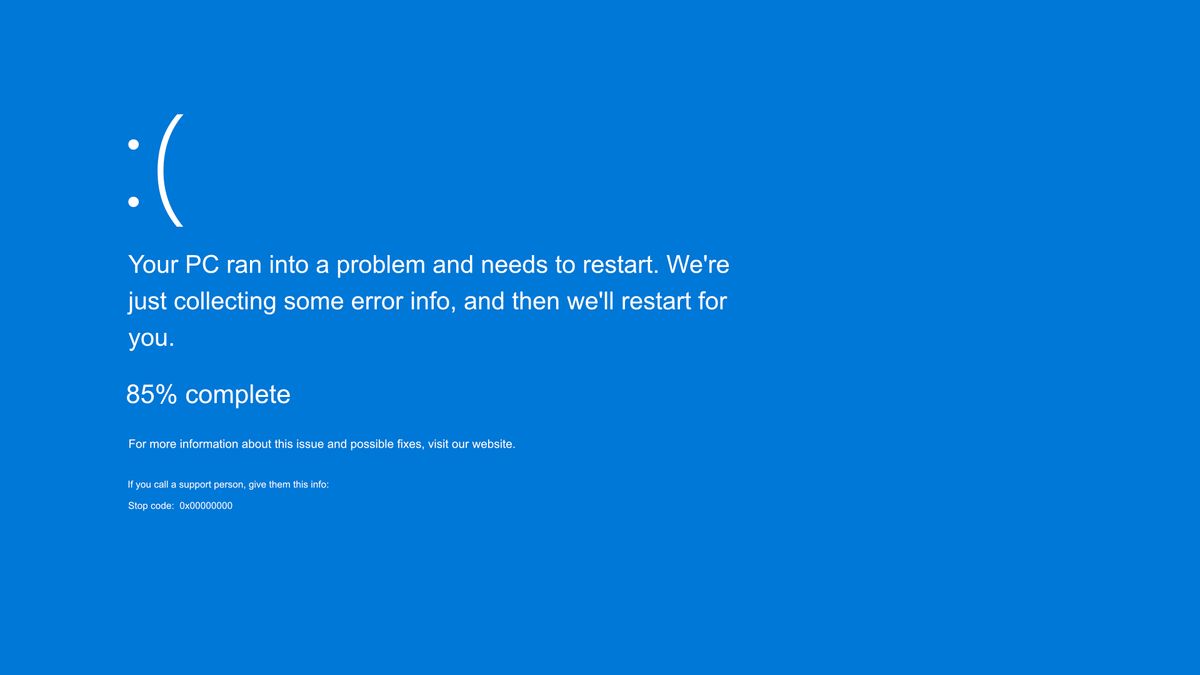
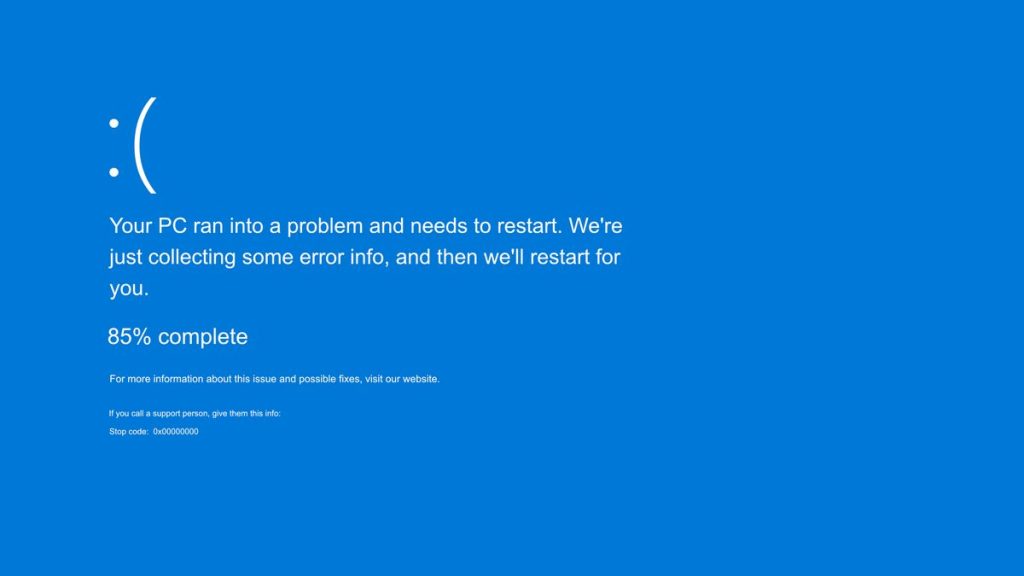
Windows crashing can be extremely frustrating, especially when you’re in the middle of work or gaming. Whether it’s a Blue Screen of Death (BSOD), random freezes, or boot failures, this guide explains the best ways to diagnose and fix Windows crashing issues in 2026.
Below are the most reliable solutions.
1. Restart Your PC and Disconnect External Devices
Sometimes crashes happen due to faulty USB drives, cables, or accessories.
Try This
- Remove USB devices
- Restart your PC
- Check if the crash repeats
If Windows works fine after removing peripherals, one of them is faulty.
2. Update Windows & Drivers
Outdated drivers often cause system crashes.
Steps
- Go to Settings → Windows Update
- Install all updates
- Update GPU drivers (NVIDIA, AMD, Intel)
- Update Wi-Fi, sound, and chipset drivers
Drivers are responsible for over 50% of BSODs.
3. Run a System File Check (SFC Scan)
Corrupted system files cause Windows to crash repeatedly.
Command
Run this in Command Prompt (Admin):
sfc /scannow
Windows will repair damaged files automatically.
4. Check for RAM & Hardware Issues
Faulty RAM or overheating hardware can cause random shutdowns.
Steps
- Run Windows Memory Diagnostic
- Monitor temperatures with HWInfo
- Clean dust from CPU fans
- Ensure proper airflow
If RAM is defective, replace the bad stick.
5. Scan for Malware or Spyware
Malicious apps can freeze or crash your PC.
Use
- Windows Defender
- Malwarebytes
- Bitdefender
Always remove suspicious apps installed recently.
6. Free Up Storage Space
Low disk space leads to slow performance and crashes.
Do This
- Delete temporary files
- Remove unused apps
- Clear recycle bin
- Move large files to USB or cloud
Keep 20% of your drive free at all times.
7. Disable Problematic Startup Apps
Too many startup programs = crashes & lag.
Steps
- Press Ctrl + Shift + Esc
- Go to Startup Apps
- Disable apps with “High Impact”
8. Check for Third-Party App Conflicts
Apps like:
- Antivirus software
- Optimization tools
- Game overlays
- Cracked software
can cause system instability.
Uninstall any suspicious or unnecessary applications.
9. Reset Windows (Preserve Files)
If crashes continue, reset Windows.
Steps
Go to:
Settings → System → Recovery → Reset this PC
Choose:
➡ Keep My Files (recommended)
➡ Remove apps & settings
10. When to Consider Hardware Replacement
If your PC still crashes, one of these may be failing:
- SSD/HDD
- Motherboard
- GPU
- RAM
A diagnostic technician can test components.
Final Thoughts
Windows crashing can stem from software conflicts, corrupted files, outdated drivers, or damaged hardware. Following the above steps will solve 90% of Windows crashes.
