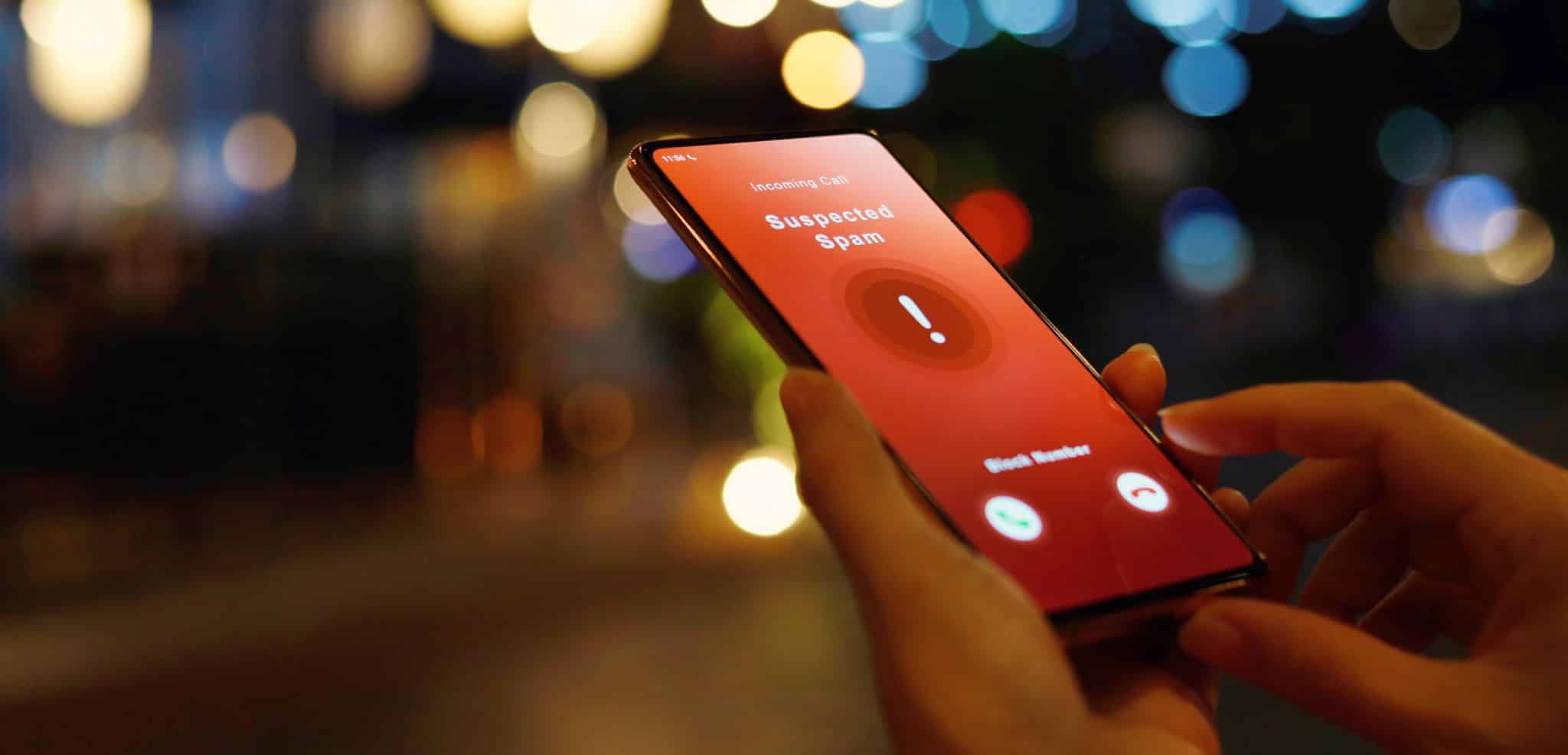
Smartphones have become an essential part of everyday life. We use them to access our bank accounts, send private messages, store personal photographs, manage social media accounts, shop online, and communicate with friends and family.
But as smartphones become more important, they also become attractive targets for cybercriminals.
A compromised phone could potentially expose personal information, passwords, private messages, financial details, browsing activity, and other sensitive data. In some cases, attackers may use malicious applications, phishing links, spyware, or stolen login credentials to gain access to a victim’s information.
The worrying part is that a hacked phone may not always show obvious signs of compromise.
If your smartphone suddenly starts behaving strangely, draining its battery unusually fast, displaying suspicious pop-ups, or using more mobile data than normal, you may have reason to investigate.
While these symptoms do not automatically mean your phone has been hacked, recognizing several unusual changes together could help you identify a potential security problem before it becomes worse.
Here are 10 signs your phone may have been hacked and what you can do about them.
1. Your Phone’s Battery Is Suddenly Draining Faster
One of the first warning signs many people notice is an unusually short battery life.
If your phone previously lasted throughout the day but suddenly needs to be charged several times, an application running in the background could be consuming excessive battery power.
Some malicious applications may run continuously in the background, collecting information, tracking activity, or communicating with remote servers. These processes can consume battery power even when you are not actively using your phone.
However, battery drain is not always caused by hackers. Aging batteries, software updates, gaming, video streaming, and poorly optimized applications can also cause the same problem.
What you should do:
- Open your phone’s battery settings.
- Check which applications are consuming the most power.
- Investigate apps you do not recognize.
- Restrict background activity for suspicious applications.
- Update your operating system and applications.
If an unfamiliar application is consuming excessive battery power, investigate it before allowing it to continue running.
2. Your Phone Is Overheating Without a Clear Reason
Does your phone become unusually hot even when you are not gaming, streaming videos, making video calls, or charging it?
Unexpected overheating could be another warning sign.
Certain malicious applications may use your phone’s processor continuously while performing hidden activities. This can cause the device to become warmer than usual, particularly when it is sitting idle.
If your phone frequently becomes hot while doing very little, check your background applications and battery activity.
Keep in mind that overheating can also result from environmental temperatures, charging problems, faulty batteries, or normal software activity.
What you should do:
- Close unnecessary applications.
- Check battery and processor usage.
- Remove suspicious applications.
- Avoid using your phone while charging if it is already overheating.
- Install available security and operating system updates.
Repeated overheating without an obvious explanation should not be ignored.
3. You Notice Apps You Never Installed
Finding unfamiliar applications on your smartphone can be concerning.
Some malicious applications disguise themselves using ordinary names, icons, or system-like descriptions. Others may be installed through unsafe downloads, suspicious websites, unofficial application stores, or applications that request excessive permissions.
If you notice an application you do not remember downloading, investigate it before opening it.
Pay particular attention to applications with access to your:
- Camera
- Microphone
- Contacts
- Location
- SMS messages
- Accessibility settings
- Files and photographs
An unfamiliar app is not automatically malware. Some applications may have been installed by your manufacturer, carrier, or a software update.
What you should do:
Go to your phone’s application settings and review your installed applications. Remove applications you do not trust or no longer need, particularly those installed from unknown sources.
Never install an application simply because a website, pop-up, or message tells you that your phone is infected and requires immediate cleaning.
4. Your Mobile Data Usage Has Increased Unexpectedly
If your mobile data suddenly finishes much faster than usual, something may be happening in the background.
Malicious software may transmit information from your device without your knowledge. Depending on the type of threat, this could include device information, browsing activity, or other data.
A sudden increase in data usage may also be caused by legitimate applications, automatic video playback, cloud backups, system updates, or streaming services.
What you should do:
- Open your mobile data usage settings.
- Check which applications are using the most data.
- Look for applications using data when you are not actively using them.
- Restrict background data for unnecessary apps.
- Remove suspicious applications.
If an unfamiliar application is using an unusually large amount of data, investigate it immediately.
5. You Are Seeing Strange Pop-Ups and Redirects
Frequent pop-up advertisements, fake virus warnings, unexpected browser redirects, or suspicious notifications could indicate that your device has an adware problem.
Some malicious websites attempt to convince users that their phones are infected so they will download fake antivirus applications, click fraudulent links, provide payment information, or reveal passwords.
For example, you might see a message claiming:
“WARNING! YOUR PHONE HAS 7 VIRUSES. CLICK HERE TO CLEAN YOUR DEVICE NOW!”
Such messages are often designed to create panic and push users into making unsafe decisions.
What you should do:
- Do not click suspicious pop-ups.
- Avoid downloading applications from advertisements.
- Close the suspicious browser tab.
- Review your browser notification permissions.
- Clear suspicious website data if necessary.
- Install applications only from trusted sources.
If pop-ups continue appearing outside your browser, investigate the applications installed on your device.
6. Your Phone Is Slower Than Usual or Keeps Crashing
A smartphone that suddenly becomes slow, freezes frequently, crashes unexpectedly, or takes unusually long to open applications may be experiencing a problem.
Some malicious applications consume memory, processing power, and other resources, affecting the overall performance of the device.
You may notice:
- Apps taking longer to open.
- Your keyboard responding slowly.
- Frequent freezing.
- Unexpected restarts.
- Applications closing without warning.
- Delays when browsing the internet.
However, performance problems can also result from insufficient storage space, outdated software, damaged hardware, or too many applications running simultaneously.
What you should do:
Restart your phone, remove unnecessary applications, free up storage space, and install pending software updates.
If the problem continues, check for suspicious apps or consider using a reputable mobile security scanner.
7. Your Phone Is Sending Messages or Making Calls You Didn’t Make
This is one of the more serious warning signs.
If you discover messages in your sent folder that you did not write, calls you do not remember making, or unusual activity on your messaging applications, someone may have gained access to your device or accounts.
Cybercriminals sometimes use compromised accounts to send scam messages to friends, family members, or business contacts.
They may impersonate you and request money, passwords, verification codes, or other sensitive information.
What you should do:
- Review your call history and sent messages.
- Change your account passwords from a trusted device.
- Check your WhatsApp linked devices and remove anything unfamiliar.
- Contact your mobile network provider if you notice suspicious calls or charges.
- Warn your contacts if fraudulent messages were sent from your account.
Never share one-time verification codes with anyone, even if the person claims to be a friend, bank employee, mobile network representative, or technical support agent.
8. You Receive Login Alerts or Verification Codes You Didn’t Request
Have you received a password reset email, login verification code, or security alert for an account you were not trying to access?
This could mean someone is attempting to access your account.
Attackers may already know your email address or password and may be attempting to sign in to your social media, email, banking, or messaging accounts.
Receiving an unexpected verification code does not necessarily mean the attacker has successfully logged in. It could mean they are attempting to gain access.
What you should do:
- Never share the verification code.
- Do not approve login requests you did not initiate.
- Change your password if you suspect it has been exposed.
- Enable two-factor authentication.
- Review recent account activity.
- Remove unfamiliar devices from your account.
If you receive several unexpected verification requests within a short period, take the situation seriously.
9. Your Camera, Microphone, or Location May Be Accessed Unexpectedly
Smartphones have privacy indicators that can help users identify when certain applications are accessing sensitive features.
If your camera or microphone indicator appears when you are not intentionally using an application that needs it, investigate.
Some applications may legitimately use these permissions in the background, depending on your device and settings. However, unknown applications with unnecessary camera, microphone, or location permissions deserve attention.
What you should do:
Review the privacy settings on your smartphone.
Check which applications have access to:
- Camera
- Microphone
- Location
- Contacts
- Photos and videos
Remove permissions from applications that do not need them.
On newer Android and iPhone devices, privacy controls allow users to review and restrict access to sensitive features.
You should also pay attention to location sharing settings and any unfamiliar applications that may have access to your location.
10. You Have Lost Access to Your Accounts or Notice Unexplained Changes
One of the strongest warning signs of a potential security breach is discovering that your accounts have been changed without your permission.
You may notice:
- Your password suddenly stops working.
- Your recovery email has changed.
- A new device appears in your account.
- Your social media profile publishes unfamiliar posts.
- Messages have been deleted.
- Your account settings have changed.
- Purchases or subscriptions appear that you did not authorize.
These signs may indicate that your account has been compromised, even if your phone itself has not been hacked.
What you should do:
Use a trusted device to access the affected account and immediately change your password.
Review your account recovery information, remove unfamiliar devices, enable two-factor authentication, and contact the platform’s official support team if you cannot regain access.
If financial accounts are involved, contact your bank immediately and review recent transactions.
How to Check if Your Phone Has Been Hacked
If you suspect your phone has been compromised, do not rely on a single symptom.
Instead, check several areas of your device:
On Android
- Open Settings.
- Go to Apps and review installed applications.
- Check Battery to identify unusual power consumption.
- Check Data Usage to find applications using unexpected amounts of data.
- Open the Google Play Store.
- Tap your profile icon.
- Select Play Protect.
- Run a security scan.
- Review app permissions, particularly Accessibility, camera, microphone, SMS, and location.
- Install available Android security updates.
On iPhone
- Open Settings.
- Review Battery to identify unusual application activity.
- Go to Privacy & Security.
- Review permissions for camera, microphone, location, and other sensitive features.
- Check your Apple Account device list for unfamiliar devices.
- Review account security and trusted devices.
- Install the latest available iOS update.
- Review any configuration profiles you do not recognize.
If you find unfamiliar devices or account changes, remove unauthorized access and secure your account immediately.
What to Do If You Think Your Phone Has Been Hacked
If you believe your smartphone has been compromised, take the following steps as soon as possible.
Step 1: Disconnect From the Internet if Necessary
If you suspect active malicious activity, disconnect your phone from Wi-Fi and mobile data while you investigate.
This may help reduce ongoing communication with suspicious services.
Step 2: Change Your Passwords
Use another trusted device to change passwords for important accounts, especially:
- Banking
- Social media
- Apple or Google accounts
- WhatsApp and other messaging platforms
Use strong, unique passwords.
Step 3: Remove Suspicious Applications
Uninstall applications you do not trust.
If an application cannot be removed, check whether it has special administrator, Accessibility, or device-management permissions that may need to be revoked first.
Step 4: Update Your Phone
Install the latest operating system and application updates.
Security updates frequently address vulnerabilities that attackers may exploit.
Step 5: Enable Two-Factor Authentication
Where available, enable two-factor authentication to make it harder for attackers to access your accounts using only a stolen password.
Step 6: Contact Your Bank if Financial Information Is at Risk
If you notice unauthorized payments, suspicious banking activity, or stolen financial information, contact your bank through its official channels immediately.
Step 7: Consider a Factory Reset
If you continue experiencing suspicious activity and cannot identify the cause, a factory reset may be necessary.
Back up essential files carefully before resetting your phone. If you believe spyware is involved, avoid restoring every application and setting from an old backup without reviewing it.
How to Prevent Your Phone From Being Hacked
Prevention is better than trying to recover your information after an attack.
Follow these smartphone security tips:
- Download apps only from official app stores.
- Avoid clicking suspicious links in SMS, email, or messaging apps.
- Never share verification codes with anyone.
- Use a strong screen lock.
- Enable two-factor authentication.
- Keep your phone updated.
- Avoid connecting to unknown Wi-Fi networks without appropriate protection.
- Review application permissions regularly.
- Avoid installing cracked or modified applications.
- Do not root or jailbreak your phone unless you understand the security risks.
- Use unique passwords for your important accounts.
- Back up your important information regularly.
These simple habits can significantly reduce your exposure to common mobile security threats.
Frequently Asked Questions (FAQs)
Can someone hack my phone without me knowing?
Yes. Some attacks may operate quietly without obvious signs. Attackers may exploit software vulnerabilities, steal login credentials, abuse account access, or install malicious applications. This is why regular security updates and account checks are important.
Does battery drain mean my phone has been hacked?
No. Battery drain can result from an aging battery, applications running in the background, software updates, gaming, or other normal activities. It becomes more concerning when it happens alongside other suspicious signs.
Can hackers see my pictures and messages?
If a hacker gains sufficient access to your device, accounts, or cloud storage, they may potentially access personal photos, messages, and other information. The extent of access depends on the type of compromise.
Can someone hack my phone through WhatsApp?
Yes, attackers can compromise WhatsApp accounts through social engineering, stolen verification codes, malicious links, or unauthorized linked devices. Protect your verification codes and regularly review linked devices.
Is turning my phone off enough to stop hackers?
Turning your phone off can temporarily stop activity on the device, but it does not remove malicious applications, fix compromised accounts, or prevent someone from accessing your online accounts from another device.
What is the best way to remove a hacker from my phone?
Start by securing your important accounts from a trusted device, reviewing suspicious applications and permissions, updating your phone, and removing unauthorized access. If you cannot resolve the issue, consider a factory reset or seek professional cybersecurity assistance.
Final Thoughts
Your smartphone contains some of your most valuable personal information, which makes protecting it more important than ever.
A rapidly draining battery, unusual overheating, strange pop-ups, unfamiliar applications, unexpected verification codes, or unexplained account activity should not be ignored.
Although these symptoms do not always mean your phone has been hacked, noticing multiple warning signs should prompt you to investigate.
Take a few minutes today to review your applications, check your account activity, update your device, and strengthen your passwords.
A few simple security habits could help protect your identity, finances, personal information, and privacy.


Leave a Reply