







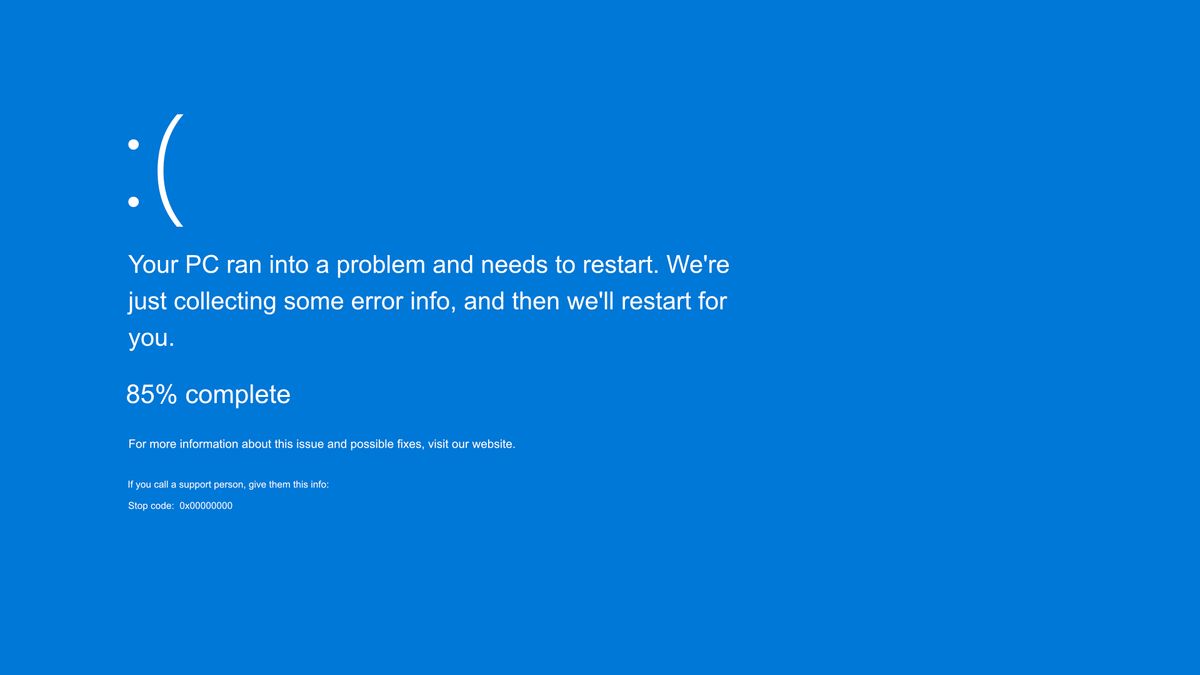
Windows crashing can be extremely frustrating, especially when you’re in the middle of work or gaming. Whether it’s a Blue Screen of Death (BSOD), random freezes, or boot failures, this guide explains the best ways to diagnose and fix Windows crashing issues in 2026.
- 1. Restart Your PC and Disconnect External Devices
- 2. Update Windows & Drivers
- 3. Run a System File Check (SFC Scan)
- 4. Check for RAM & Hardware Issues
- 5. Scan for Malware or Spyware
- 6. Free Up Storage Space
- 7. Disable Problematic Startup Apps
- 8. Check for Third-Party App Conflicts
- 9. Reset Windows (Preserve Files)
- 10. When to Consider Hardware Replacement
- Final Thoughts
Below are the most reliable solutions.

1. Restart Your PC and Disconnect External Devices
Sometimes crashes happen due to faulty USB drives, cables, or accessories.
Try This
- Remove USB devices
- Restart your PC
- Check if the crash repeats
If Windows works fine after removing peripherals, one of them is faulty.
2. Update Windows & Drivers
Outdated drivers often cause system crashes.
Steps
- Go to Settings → Windows Update
- Install all updates
- Update GPU drivers (NVIDIA, AMD, Intel)
- Update Wi-Fi, sound, and chipset drivers
Drivers are responsible for over 50% of BSODs.
3. Run a System File Check (SFC Scan)
Corrupted system files cause Windows to crash repeatedly.
Command
Run this in Command Prompt (Admin):
sfc /scannow
Windows will repair damaged files automatically.
4. Check for RAM & Hardware Issues
Faulty RAM or overheating hardware can cause random shutdowns.
Steps
- Run Windows Memory Diagnostic
- Monitor temperatures with HWInfo
- Clean dust from CPU fans
- Ensure proper airflow
If RAM is defective, replace the bad stick.
5. Scan for Malware or Spyware
Malicious apps can freeze or crash your PC.
Use
- Windows Defender
- Malwarebytes
- Bitdefender
Always remove suspicious apps installed recently.
6. Free Up Storage Space
Low disk space leads to slow performance and crashes.
Do This
- Delete temporary files
- Remove unused apps
- Clear recycle bin
- Move large files to USB or cloud
Keep 20% of your drive free at all times.
7. Disable Problematic Startup Apps
Too many startup programs = crashes & lag.
Steps
- Press Ctrl + Shift + Esc
- Go to Startup Apps
- Disable apps with “High Impact”
8. Check for Third-Party App Conflicts
Apps like:
- Antivirus software
- Optimization tools
- Game overlays
- Cracked software
can cause system instability.
Uninstall any suspicious or unnecessary applications.
9. Reset Windows (Preserve Files)
If crashes continue, reset Windows.
Steps
Go to:
Settings → System → Recovery → Reset this PC
Choose:
➡ Keep My Files (recommended)
➡ Remove apps & settings
10. When to Consider Hardware Replacement
If your PC still crashes, one of these may be failing:
- SSD/HDD
- Motherboard
- GPU
- RAM
A diagnostic technician can test components.
Final Thoughts
Windows crashing can stem from software conflicts, corrupted files, outdated drivers, or damaged hardware. Following the above steps will solve 90% of Windows crashes.


